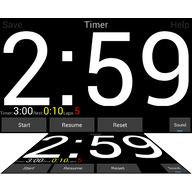
 Sports Timer
How to use Sports Timer
The app opens with a workout already loaded, so you can press start and see what happens. This page walks through the rest: building your own sequence, saving it, and adding sound.
The main screen
The big number is the time. Underneath it you see what is running now and what comes next. Along the bottom are the controls, and the top corners hold two buttons: save on the left, settings on the right.
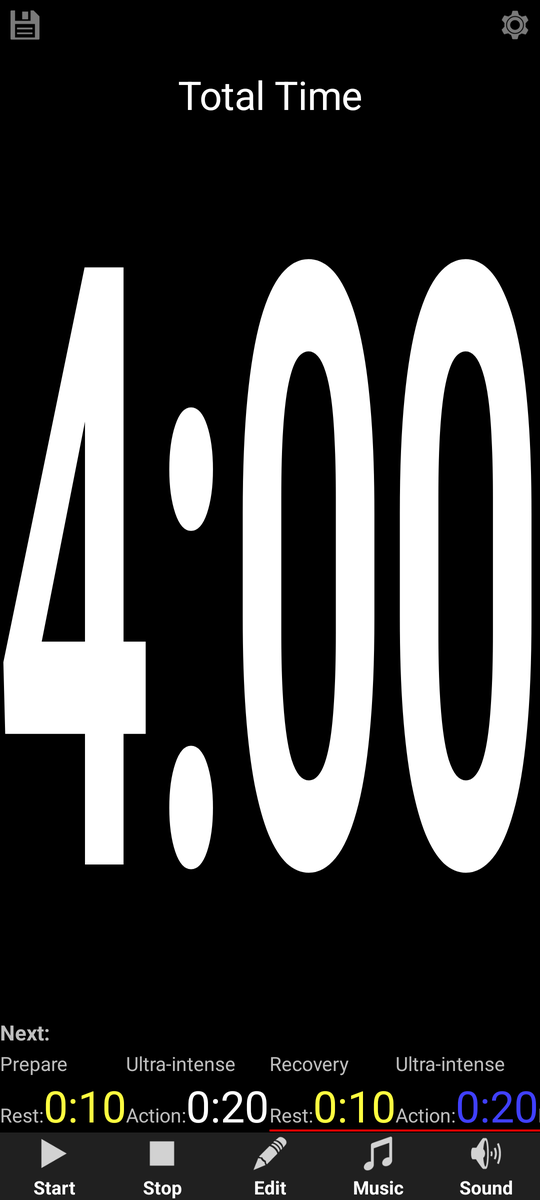
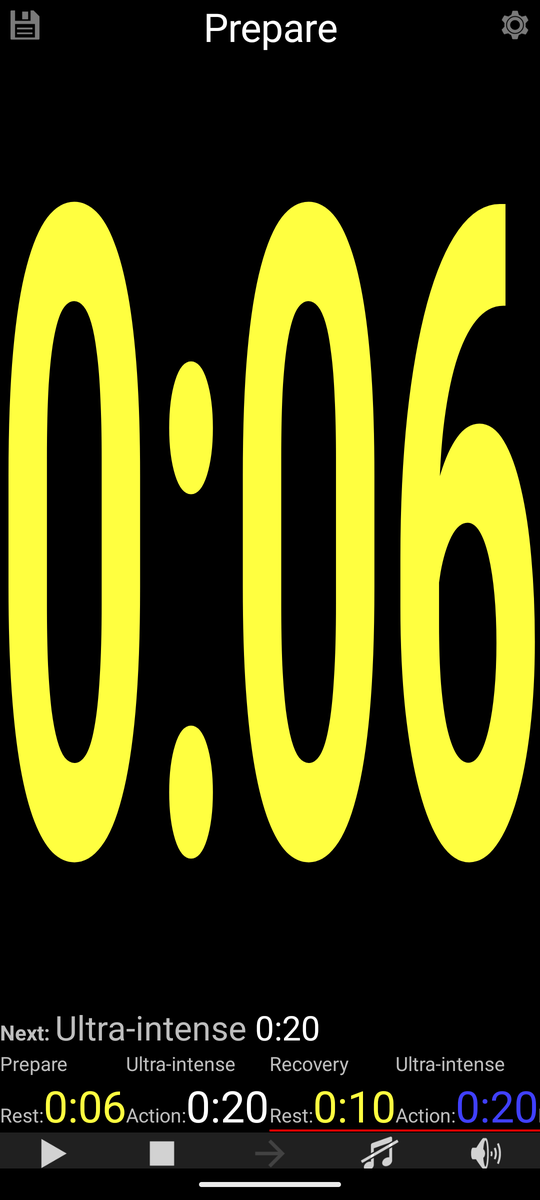
You do not have to hit the small buttons. A short tap anywhere on the screen starts the timer, or resumes it when paused. A long press resets it to the beginning. That matters when your hands are taped, gloved or wet.
Running a workout
-
Start
Press Start, or tap anywhere on the screen. The first block begins to count down.
-
Pause and resume
Press Stop to pause. Resume continues from the same spot.
-
Move on early
Press Skip to end the current block and jump to the next one. This is also how you finish a stopwatch block.
-
Start over
Press and hold anywhere on the screen to reset the sequence.
Building your own sequence
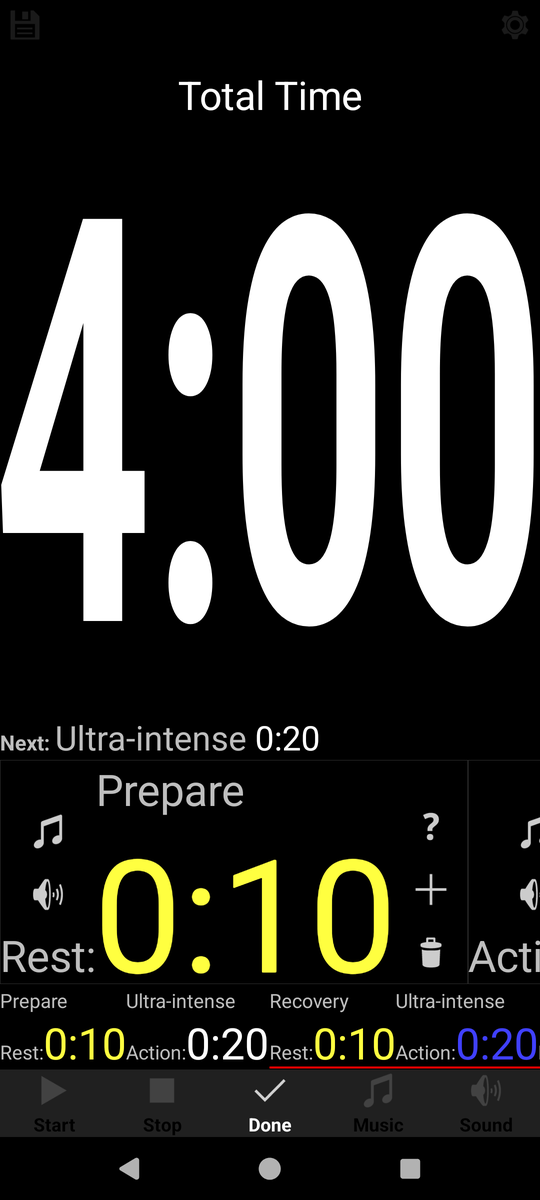
Press Edit on the main screen. You get one row per block, and each row has three parts: the type, the value and a set of buttons.
-
Choose the type
Tap the type to cycle through action, rest, stopwatch, clock and laps. Action and rest are ordinary countdowns; the other three are explained on the features page.
-
Set the value
The value is minutes and seconds. Tap the upper half of a number to add one, the lower half to take one away. So
0:10is ten seconds and11:0is eleven minutes.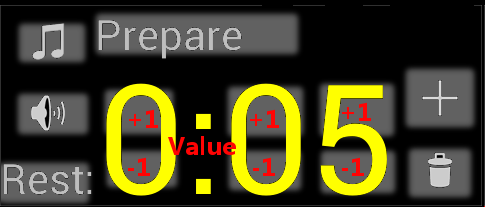
Every digit has its own +1 and -1: the top half counts up, the bottom half counts down. Minutes on the left of the colon, seconds on the right. -
Name the block
Tap the name to change it. The name is what the whole room reads while the block runs.
-
Add or remove blocks
The add button inserts a new block after this one, delete removes it. The last remaining block cannot be deleted.
-
Go back
Press the back button once to return to the main screen.
Repeating with laps
A laps block repeats the blocks above it. The red line under the block shows exactly which ones are included, and the two red arrows move that line so the group takes in more or fewer blocks.
- Tap the upper half of the lap number to add a repeat, the lower half to remove one.
- Going below one gives an endless loop, which keeps running until you stop it.
- A laps block can sit inside another one, so rounds of rounds are possible.
An example. Six sprints of twenty seconds with ten seconds of rest, four rounds, three minutes between rounds:
| Block | Type | Value |
|---|---|---|
| Sprint | Action | 0:20 |
| Rest | Rest | 0:10 |
| Laps | Laps | 6 — red line around the two blocks above |
| Between rounds | Rest | 3:00 |
| Laps | Laps | 4 — red line around all four blocks above |
Saving it as a preset
-
Press save
The save button is in the upper left corner of the main screen.
-
Pick a slot and a name
Choose which preset position to write to and give it a name you will recognise next week.
-
Load it again
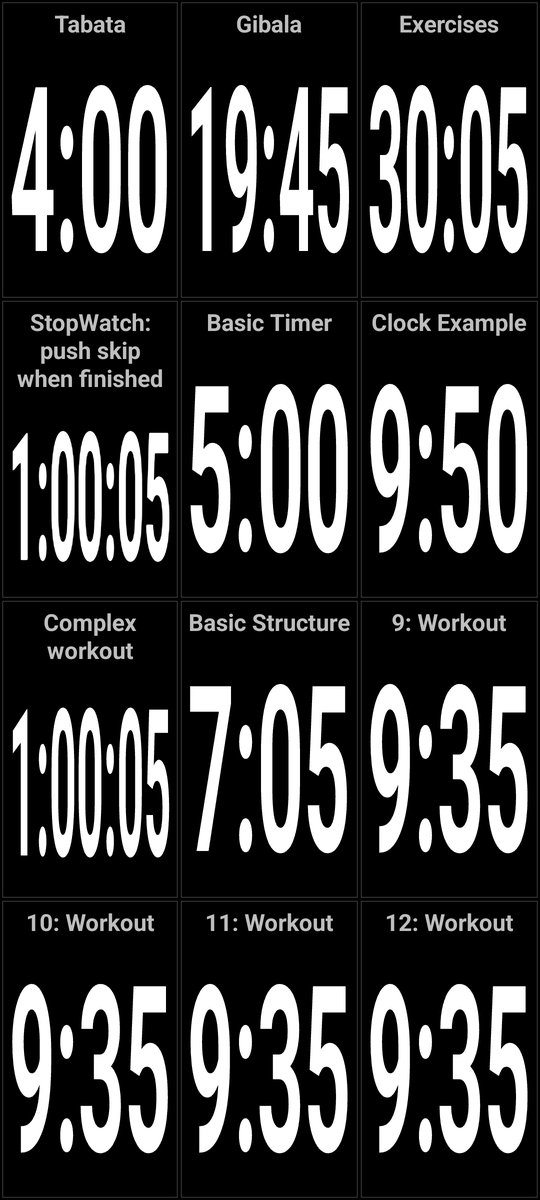
Swipe to the left on the main screen. The preset window slides in: every saved session as a tile with its name and how long it takes. Tap one and it is loaded.
Sound and music
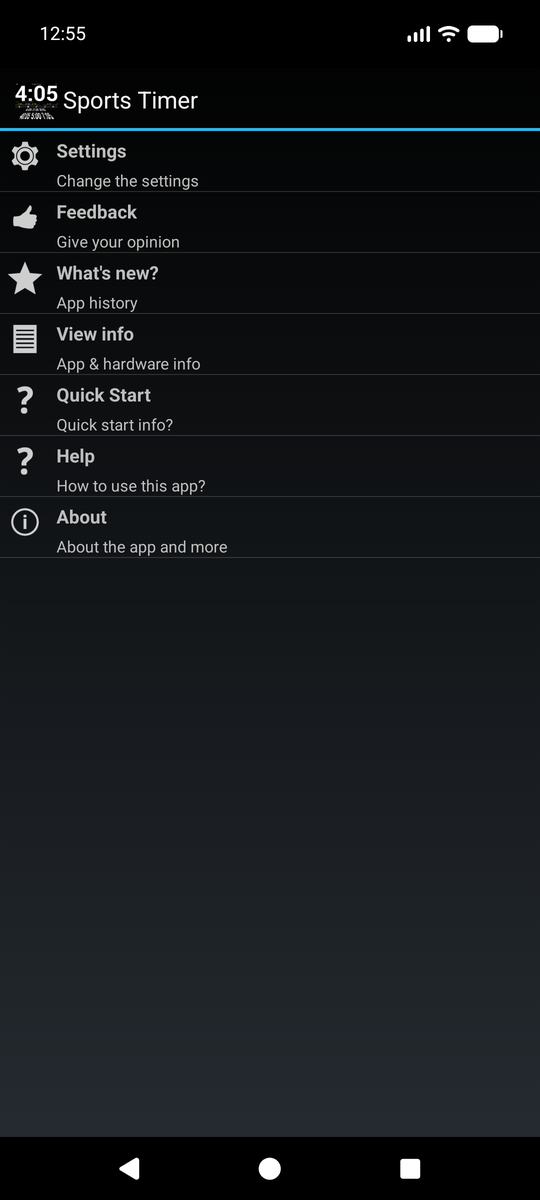
Open the settings with the button in the upper right corner of the main screen, then Settings. What you set there is used by every preset, which is almost always what you want.
- Music. Choose a track or a whole folder. The Android file picker opens, so the music can be anywhere: on the phone, an SD card or a cloud drive.
- Shuffle. Play a folder in order or shuffled.
- Beeps. Pick the three-two-one countdown sound and the sound that ends a workout.
- Volume and brightness. Have the app set both when it opens.
Set sound in the general settings, not per block. A single block can override the music and beeps, and sometimes that is exactly right, but if you change it in every block you will spend your evening editing instead of training.
Starting by itself
Under Scheduled Start you can have a preset load and start at a fixed time. Give the schedule a name, a start date and a number of weeks, point it at a presets file and a preset, and add the days and hours it should run. The preset number can also step forward on its own: every run, daily or weekly.
Moving your workouts to another device
-
Export
In the settings, use Export presets & settings to write a
.tmrfile, or mail it straight to yourself. -
Import
On the other device, open the
.tmrfile. Tapping the attachment on an Android device hands it to Sports Timer, or use Import presets in the settings.
More help inside the app
Every block in the edit screen has a ? button with help for that exact block type. The settings menu also holds a quick start guide and a longer help page.